You can use the slicer capabilities to quickly find and select items from any slicer list. Search directly within the slicer to filter available values, or, where the slicer allows multiple selections, use the advanced Multi‑Item Search dialog to select multiple items at once by entering a delimited list. This makes it easy to handle large lists and apply precise selections efficiently.
Search Slicer Elements
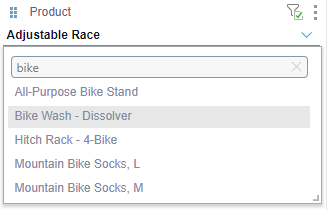
- You can search slicer elements in dropdown list, list box, and tree slicers using the slicer search bar:
- When using multi select dropdown list, list box, or tree slicers, the search will return all elements matching the given search input.
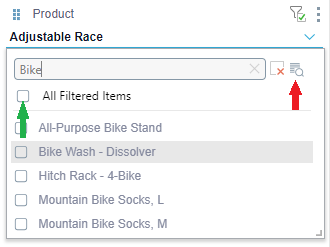
Tip: You can select all the results that were returned from your search by selecting the All Filtered Items checkbox (green arrow below). You can also open the Multi-item Slice Search (blue arrow) to search on multiple terms in one action.
Multi-item Slice Search
The Multi-item Slice Search is available for multi-select, dropdown list, list box, and tree slicers. You can search by slicer name or by key. By default, your search terms must be in a comma-separated list and must exactly match the search criteria to return a result.
To perform a multi-item slice search:
- From the Slicer, click the Multi-item Slice button (blue arrow, above).
- Type or paste a comma-separated list of search items into the box.
- Optional. Open the Advanced Settings (purple arrow above), where you can:
- Limit the number of results returned.
- Set the search to contain or not contain particular strings (no wildcards).
- Change the list delimiter used to separate the search items.
- Optional. You can also use the checkboxes at the bottom of the panel to choose which results to select in the results.
- Select the Select results checkbox to select matches returned in the results automatically. If you clear this checkbox, the matches are displayed but selected.
- Select the Ignore previous selections checkbox to ignore previous selections and only select the current items. If you clear this checkbox, the currently selected items are added to the previous selections.
- Click Search.
The Multi-item Slice Search dialog opens:
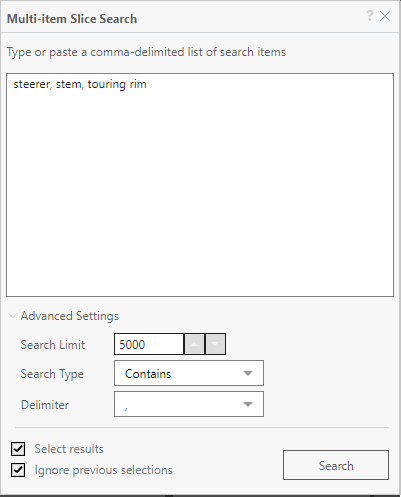
This option allows multiple items to be entered at once, instead of requiring multiple searches. This is particularly useful when searching large and extremely large lists.
The dialog closes and the results are added to the filter.
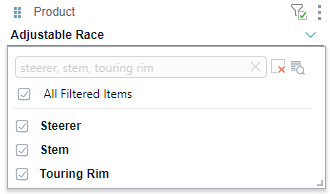
Note: The items in the preceding slicer are selected because the default checkbox selections were used in the Multi-item Slice Search dialog.
Note: The multi-item slice search requires an exact match by default and does not allow wildcards.
Select Multiple Members
Select a Range of Items
Select multiple items in a range simultaneously:
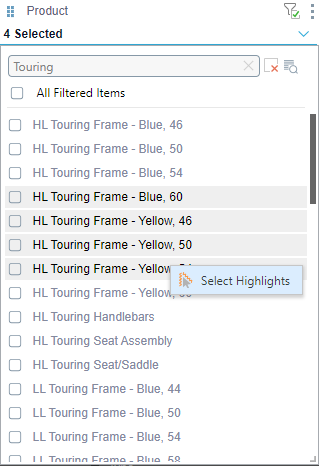
- Select the first item, press Shift, and then select the last item.
- To select this range, either:
- Right-click Select Highlights.
- Press the Spacebar on your keyboard.
All items in the range between your first and last selections are highlighted.
Select Multiple Items that are not in a Range
Select multiple items in a multi-select dropdown list individually: